USB transmitters and axis configuration
Distinguish radio protocols from USB joysticks, configure the axes and check directions before practising.
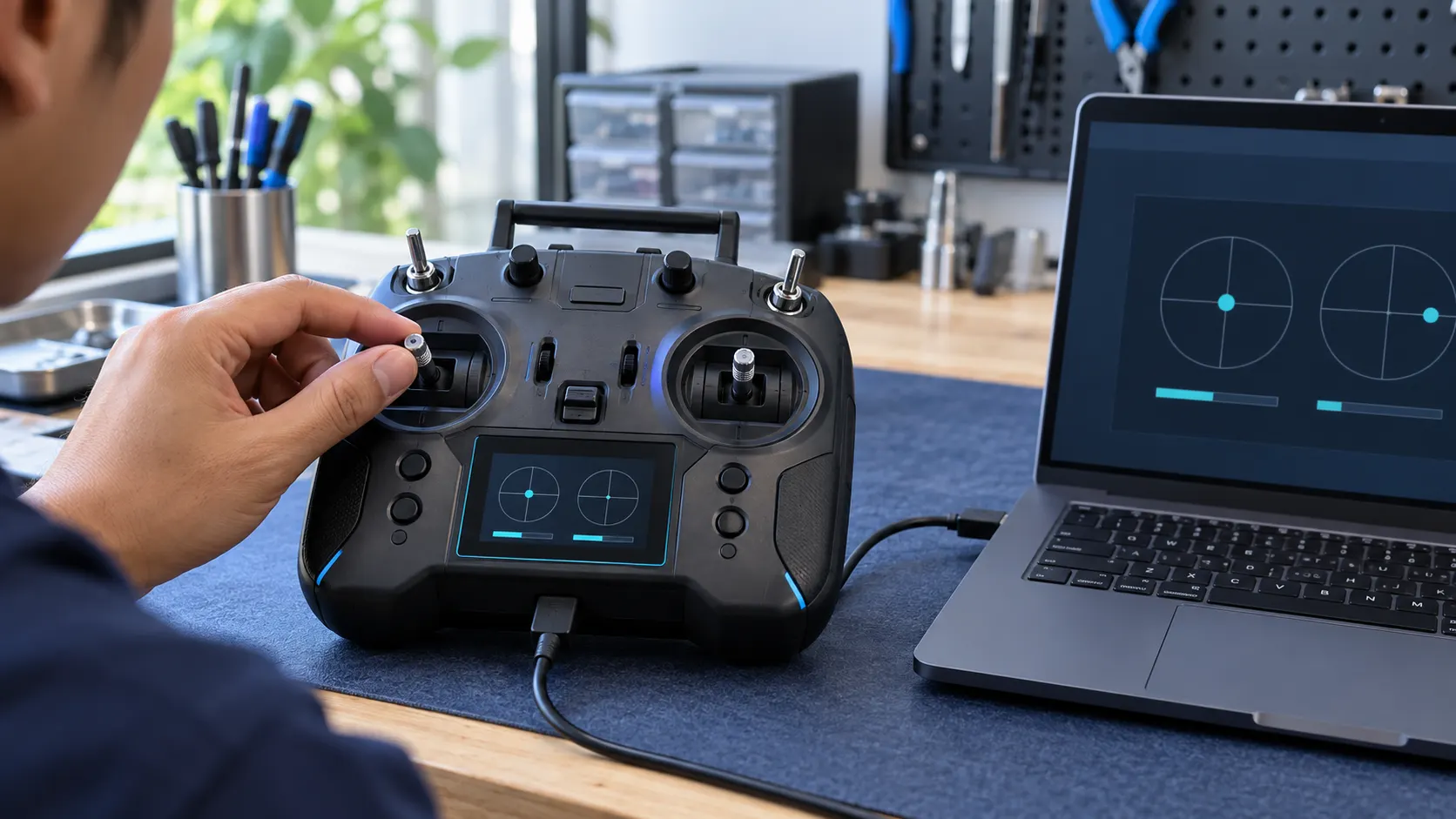
USB and radio are separate paths
Using a transmitter as a USB joystick sends stick values over the cable into the computer, whereas ELRS or other radio protocols are used to link to the receiver on the aircraft. The two are not the same specification, so a transmitter that works with a simulator over USB may still not match the receiver of an existing drone.
Check the data port and USB mode in the manual for the actual model; a cable that can charge may not carry data. The example EdgeTX USB Joystick explains mapping control channels to axes and buttons, while RadioMaster Pocket is an example for practising reading model specifications, not a requirement to buy this model.
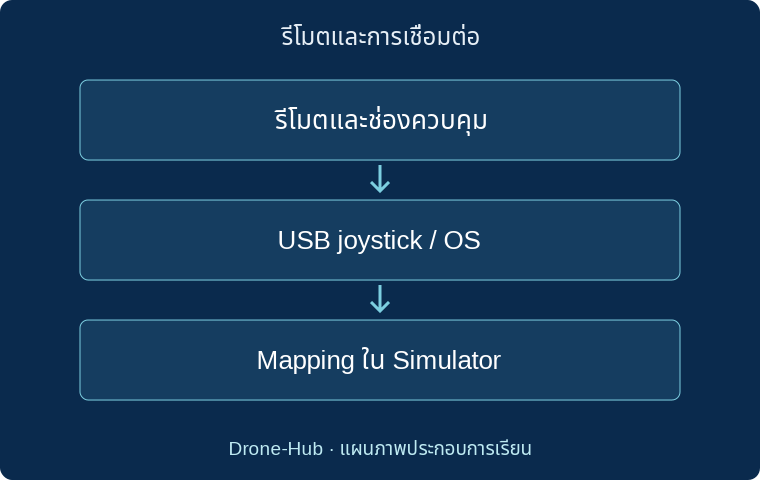
Configure layer by layer
- Create a SIM profile separate from the real-aircraft profile, and use the RF state specified in the manual for training over USB
- Connect a data cable to the correct port and select joystick mode if the model offers the option
- Check in the operating system that the device is detected and that every stick axis changes value continuously
- Open the simulator, perform Calibration as instructed, then map Roll, Pitch, Yaw and Throttle
- Move one axis at a time, confirming the name, direction, full range and rest position before starting a flight scenario
Mode 2 generally uses the left stick to control Throttle/Yaw and the right stick to control Pitch/Roll, but you must confirm the settings of your own transmitter and simulator. Do not use a picture of the stick positions in place of checking the actual axes.
When an axis is wrong or stuck
| Symptom | What to check first |
|---|---|
| The computer does not detect the transmitter | Port, data cable and USB mode |
| Device detected but the sticks do not move | Channel settings in the transmitter and the joystick list in the OS |
| A stick moves in the reverse direction | Mapping/invert in the simulator; fix one layer at a time and recheck |
| Jitter at stick centre | Calibration and deadband according to the manual; do not increase it so much that it masks the control range |
If going through a ground station, also study the calibration and modes that QGroundControl supports. Do not connect the experimental path to control a real aircraft during practice.
Axis-check deliverable
Record the device name, OS, simulator version, stick mode and the check results for all four axes in the practice log template , then practise take-off and landing in a simulated scenario. If any axis is still not understood, fix it before increasing speed. See the training plan
Bibliography and original sources
Documents checked 23 September 2026