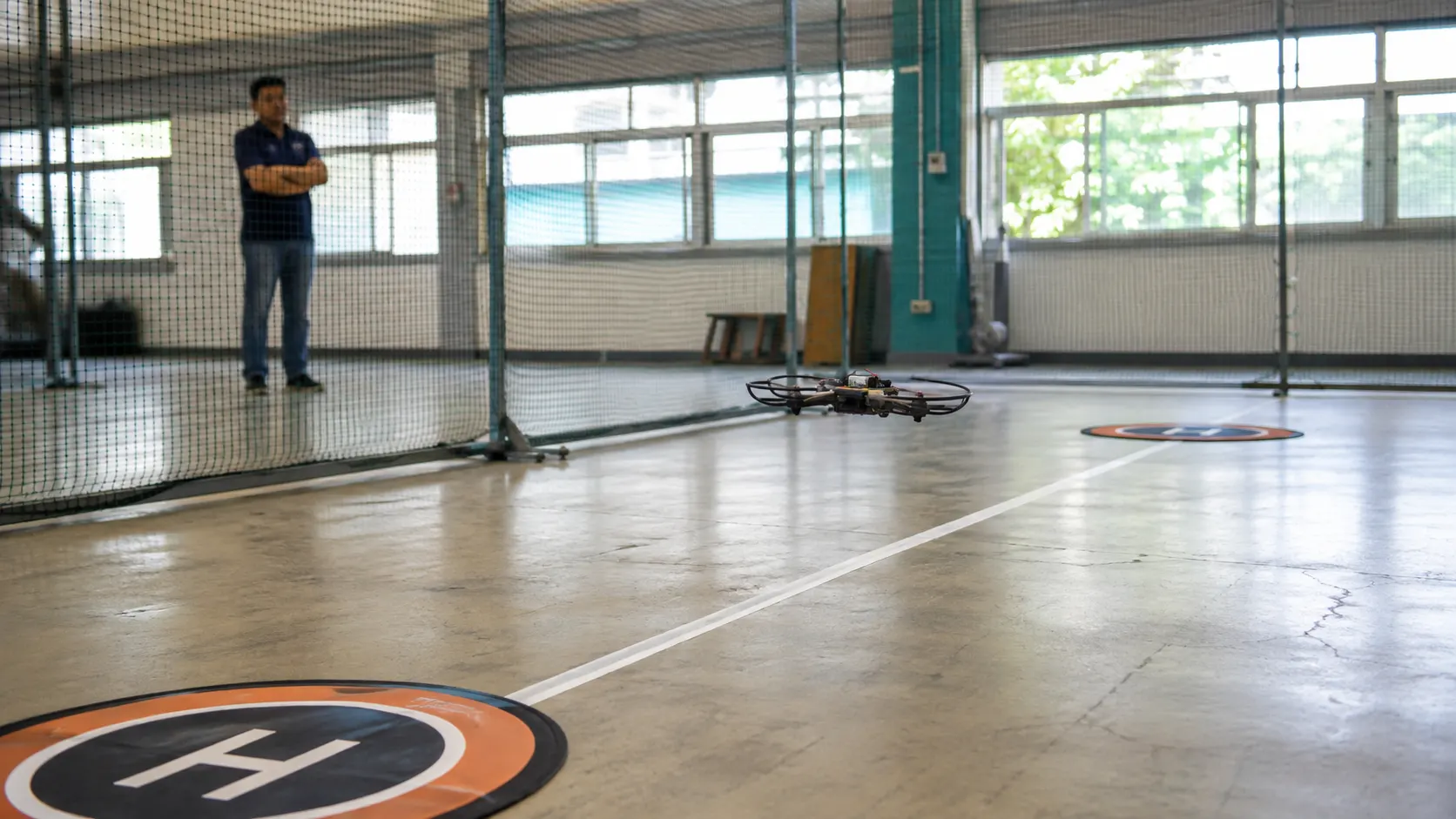
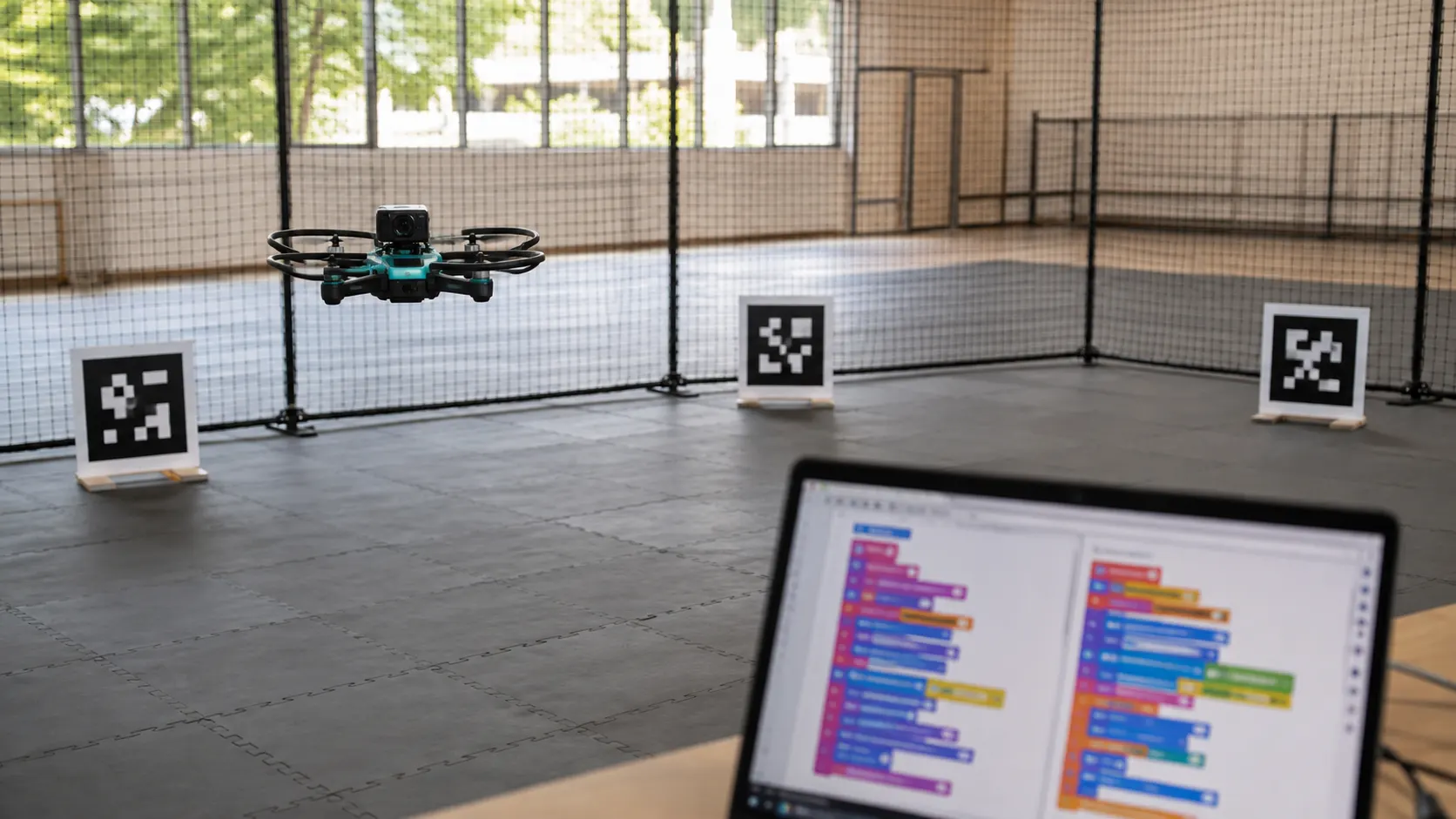
Five example programs for the Hula app, from flying straight and landing, a square using a Repeat loop and a 5-pointed star with lights, to obstacle avoidance with sensors and variables and a multi-threaded parallel QR Code search mission, each with line-by-line explanations.
Five examples ranging from beginner to highly advanced, with detailed explanations. Tap a heading to show/hide the details. Each example builds on the one before it.
AI-generated conceptual illustration, not a screenshot or a device model confirmed to be supported
Events Flight order
when [▶] clicked
Take off
Fly to Front with 100 cm Speed 50%
Landing
The most basic structure of every Hula program consists of just 2 categories: Events (the starting point) and Flight order (flying).
Two iron rules to remember by heart: (1) Take off must always come before any other flight command, and (2) the program must always end with Landing. If you forget Landing, the drone will keep hovering in mid-air until you command it to land yourself through the app.
At a speed of 50% (equivalent to 0.5 m/s) over a distance of 100 cm, the drone takes about 2 seconds to fly. This makes a good first test program to check that the drone is connected and the blocks run correctly, before moving on to more complex programs.
#2
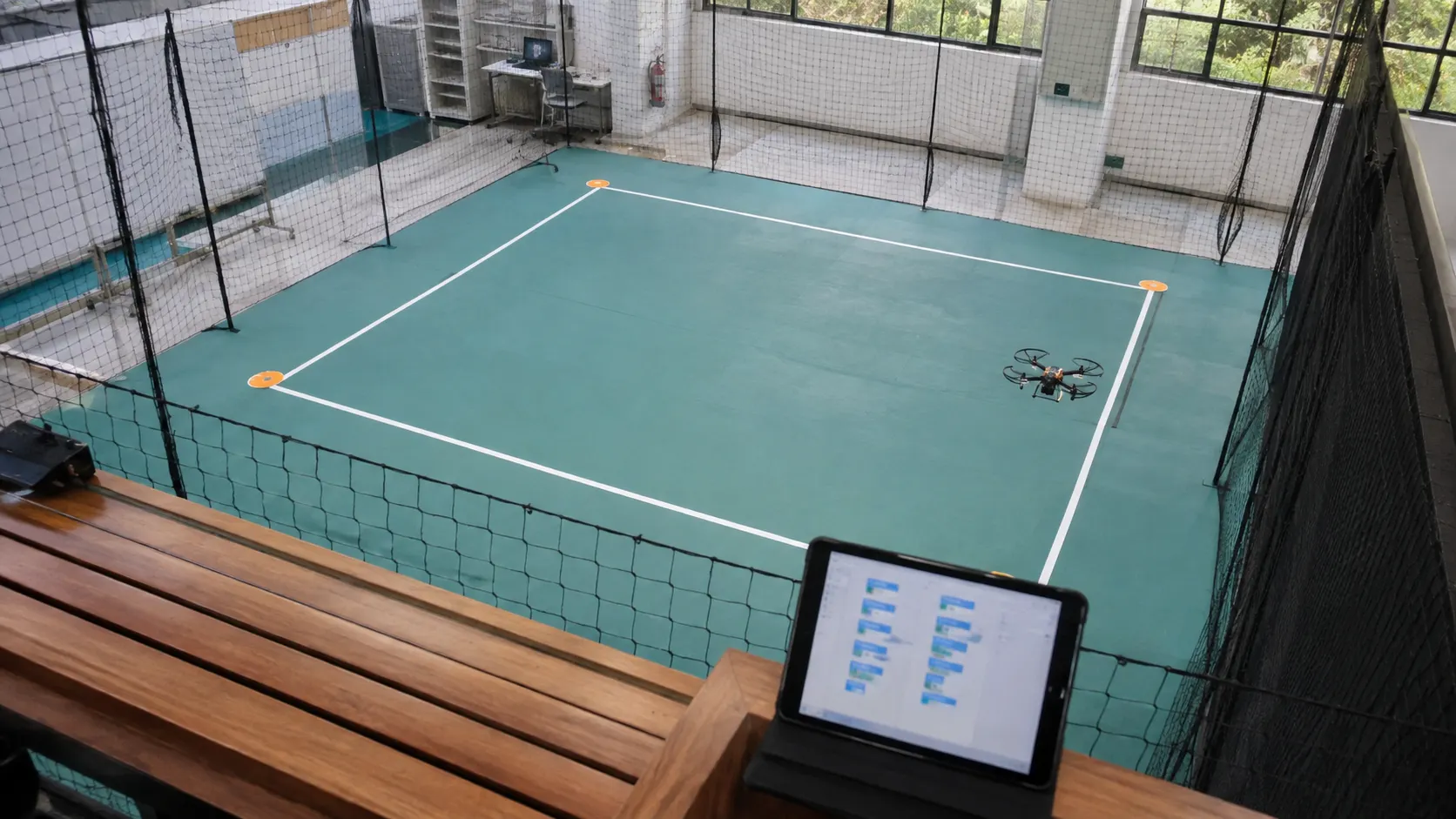
Fly a square using a Repeat loop
Level 2 · Elementary
AI-generated conceptual illustration, not a screenshot or a device model confirmed to be supported
Events Flight order Control
when [▶] clicked
Take off
Repeat [4] times
Fly to Front with 60 cm Speed 50%
Turn to Clockwise with 90 degree
Landing
This builds on Example 1 by introducing the Control category for the first time: the Repeat [n] times block.
Instead of stacking Fly + Turn blocks by hand 4 times (8 blocks in total), we use a loop, leaving just 2 blocks inside the loop. The advantage is that to change the size of the square you edit only the number in one Fly block, rather than editing each block one by one.
The mathematics used: the total angle turned to complete a full loop is always 360° (for an ordinary convex polygon). Dividing by the number of sides n gives the turn angle at each point: a square with 4 sides → 360/4 = 90°. This is the basic understanding that is extended to calculate the star shape in the next example.
#3
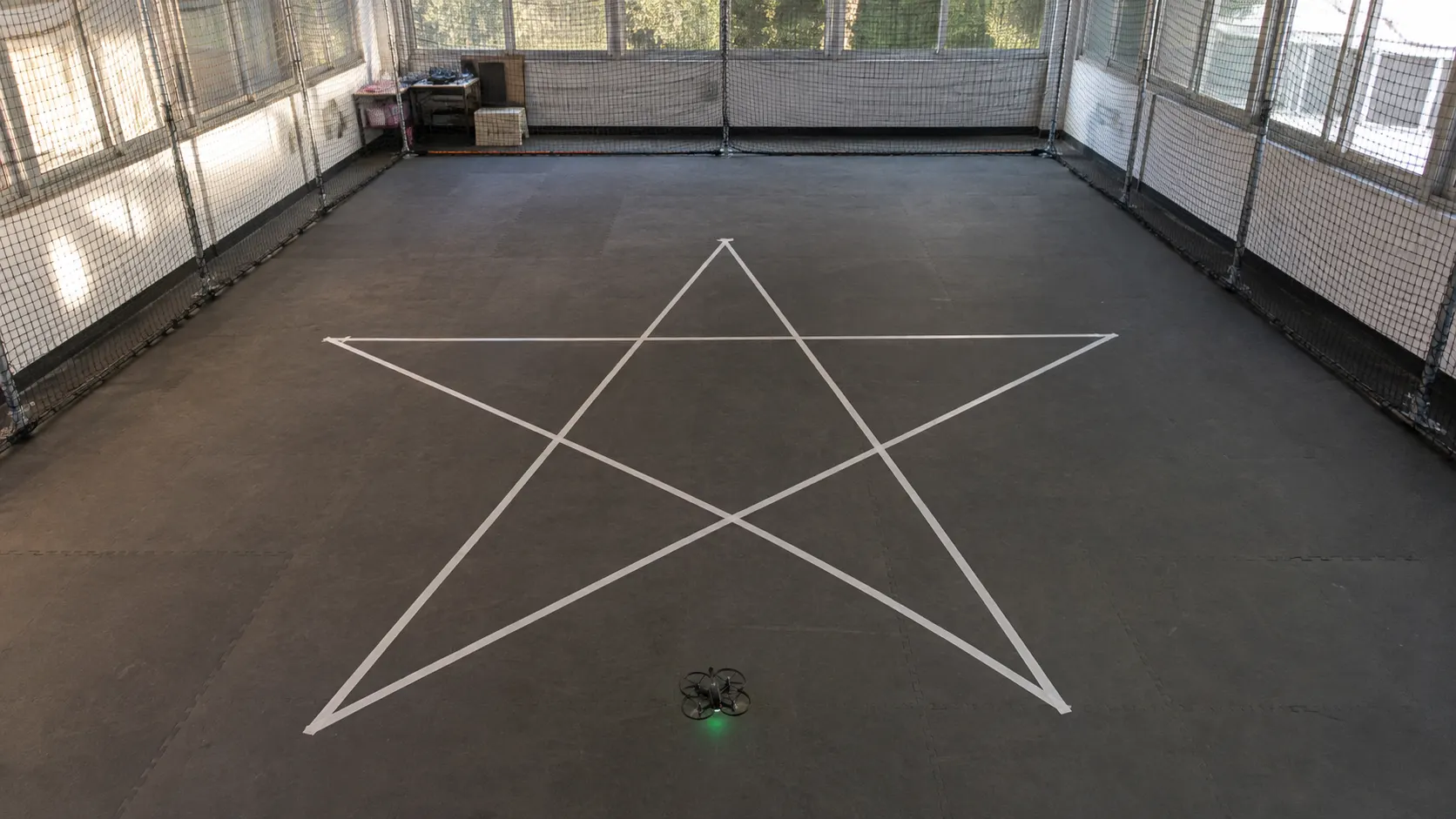
Fly a crossed 5-pointed star with flashing lights
Level 3 · Intermediate
AI-generated conceptual illustration, not a screenshot or a device model confirmed to be supported
Events Flight order Control Multimedia (lights)
when [▶] clicked
Take off (lights steady on, green)
Repeat [5] times
Fly to Front with 50 cm Speed 50% (lights flash)
Turn to Clockwise with 144 degree
Landing
This builds on Example 2 with a harder problem: a crossed 5-pointed star (pentagram). The turn angle is not 360/5 = 72° as for an ordinary pentagon but must be 144°, because the flight path crosses itself (self-intersecting), so the total accumulated turn angle must reach 720° rather than 360°.
What differs from the previous example is that the light blocks are embedded in the white slot at the end of the Take off and Fly to Front blocks. The lights are not a separate, independent block but an additional parameter tied directly to the time span of that flight block, making the flight direction easier to see when flying in low light.
This example shows that the Flight order and Multimedia (lights) categories are not always separate; some blocks combine both in a single block.
#4
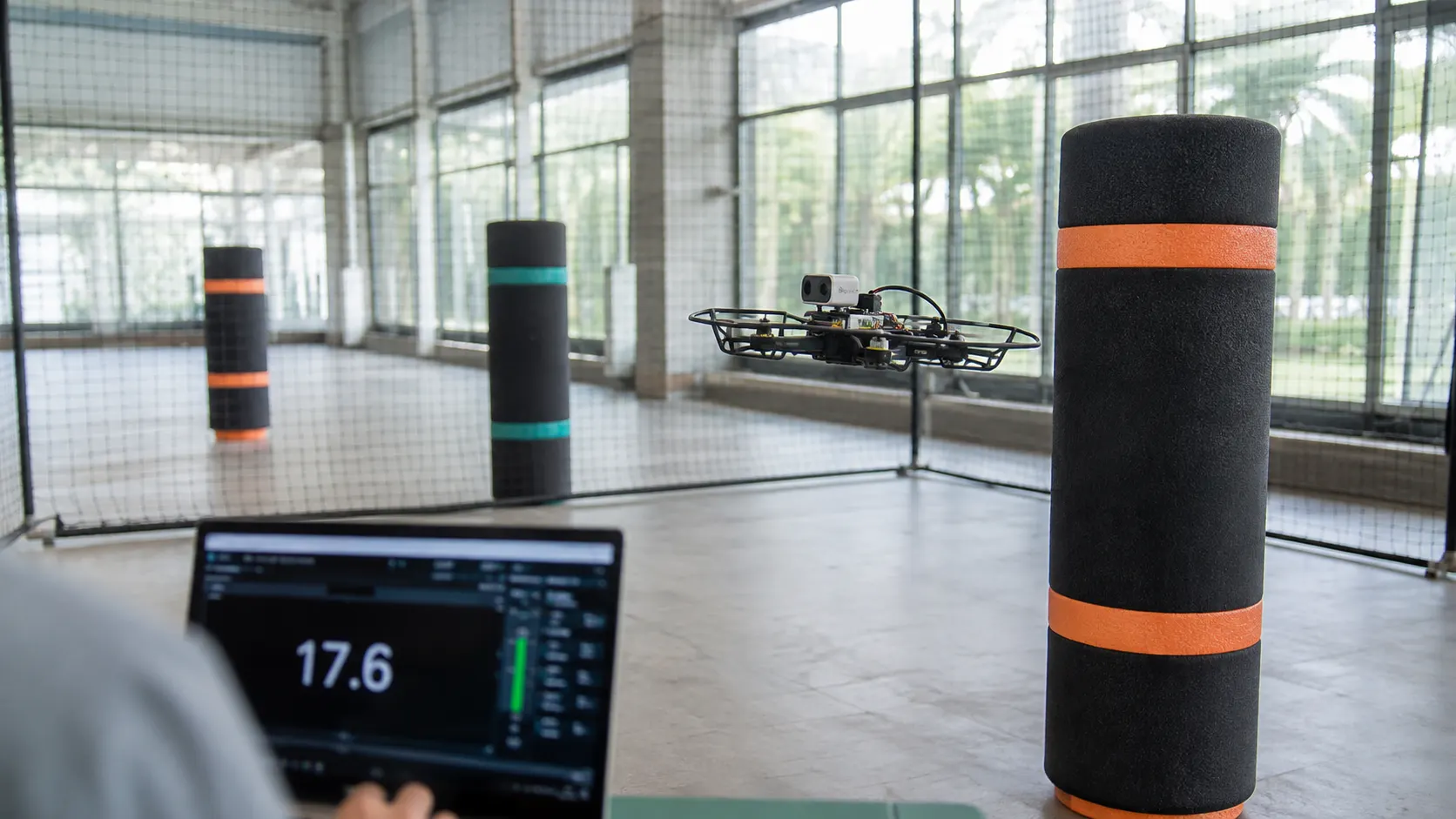
Survey flight with automatic obstacle avoidance, counting encounters and firing a warning
Level 4 · Advanced
AI-generated conceptual illustration, not a screenshot or a device model confirmed to be supported
Events Flight order Sensor Control Variables Laser
when [▶] clicked
Turn on obstacle avoidance
Set [obstacle encounter count] to 0
Take off
repeat until [obstacle encounter count = 3]
Fly to Front with 30 cm Speed 40%
if [Return "true" if obstacle Front] then
Turn to Clockwise with 90 degree
change [obstacle encounter count] by 1
if [obstacle encounter count = 3] then
Lasing 5 times at 2 Hz
Landing
This is the first example that seriously combines 5 categories: Sensor (detecting obstacles), Variables (counting cumulative encounters), Control (nested if and repeat until), Laser (firing a warning when the threshold is reached) and Flight order (movement).
The key difference from Repeat n times: we do not know in advance how many iterations it will take to encounter an obstacle 3 times, so we must use repeat until [condition] instead of a fixed number of iterations.
Note the if nested inside an if: the first if checks whether an obstacle has been detected (if so, turn to avoid it and increment the count); the second if, nested inside, checks whether the variable has reached 3 (if so, then fire the laser warning). Without this nesting, the laser would fire every time an obstacle is encountered instead of only when the threshold is reached.
Caution: the rule 'do not use = to compare coordinate values in real time during flight' from the Sensor category applies only to values coming directly from sensors (such as current coordinate). A variable whose value we control ourselves through Set/change, as in this example, can be compared with = as usual, because its value changes only when the program tells it to, not as a value streaming continuously from the hardware.
#5
Multi-threaded parallel QR Code target search-and-fire mission
Level 5 · Expert
AI-generated conceptual illustration, not a screenshot or a device model confirmed to be supported
Events Flight order Sensor AI-Recognition Laser Control Variables
Script 1: flight control thread
when [▶] clicked
Turn on obstacle avoidance
Set [targets hit] to 0
Take off
broadcast [start mission]
repeat until [targets hit = 3]
Fly to Front with 40 cm Speed 40%
if [Return "true" if obstacle Front] then
Turn to Clockwise with 90 degree
Landing
stop [all scripts]
Script 2: target search-and-fire thread (runs in parallel)
when I receive [start mission]
repeat until [targets hit = 3]
[Front camera] Recognize QR code [0]
if [Return the result of Recognize] then
Turn to Clockwise with 180 degree
Lasing 3 times at 2 Hz
change [targets hit] by 1
wait 1 seconds
This is the most advanced example, combining almost every category, and it is the only example that uses 2 scripts running 'in parallel' (parallel threads) rather than one long sequence.
Why split into 2 scripts: The survey flight (movement) and the QR code search (recognition) must happen at the same time, not alternately step by step. If they were placed sequentially in a single script, the drone would have to stop and wait for the recognition result every time before flying on, making the search very slow and unrealistic.
The mechanism that starts the 2 scripts together: broadcast [start mission] in Script 1 triggers when I receive [start mission] in Script 2 to start running immediately. It is the only mechanism in Hula that works somewhat like basic multi-threading.
Shared variable: [targets hit] is read and written by both scripts at the same time. Script 2 increments it every time a target is hit, while Script 1 keeps checking this value to know when the mission is complete so that it can land. This is the only way the 2 threads can communicate status with each other in this app.
Hardware limitation to watch out for: The mutual exclusion rule of the AI-Recognition category states that no more than 1 recognition block may run at the same time. The search script therefore uses only one QR code recognition block per loop iteration and does not stack several recognition blocks.
stop [all scripts] at the end of Script 1: This is a safety pattern that prevents a dangling thread in case Script 2 is still running slower than expected when the mission should already have ended. It is a software-engineering-level concept, not just ordinary flight-block stacking.
Why it is rated the highest level: you must think simultaneously about concurrency (parallel execution), sharing state across threads, the limitations of the camera hardware and handling edge cases, which goes far beyond ordinary flight-block stacking.
Additional formulas and exercises · updated 2026-09-26
F40: How many degrees to turn, and is it close enough to the target?
This is a demonstration of mathematics on an idealised plane for reading Hula loops, not a certification of real flight paths. It assumes straight legs of equal length with a turn in the same direction every time.
Number of points skipped around the vertex circle, dimensionless; input
Convex shape k=1; star 1<k<n/2 and gcd(n,k)=1 for a single loop
turn
Exterior turn angle deg; output
360k/n; set the left/right sign according to the actual API
segment_i, distance
Length of each leg and total distance cm or m; input/output
≥ 0 finite; convert to a single unit before summing
x, target
Position on one axis cm; input
finite, from the problem or measured in the same frame
ε
Tolerance cm; input
≥ 0 from the problem specification, not a certified accuracy
actual, target_angle
Measured angle and target angle deg; input
finite; target in the angle_error equation means target_angle
angle_error, ε_angle
Signed error and threshold deg; output/input
error lies in [−180,180); 0 ≤ ε_angle ≤ 180
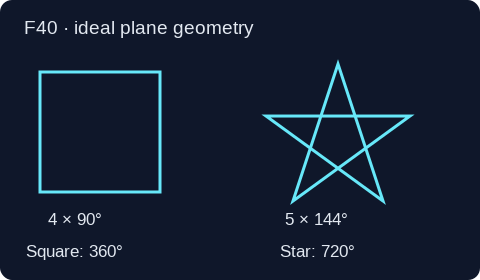
Image description: the left figure walks 4 equal sides and turns 90° each time; the right figure, the star {5/2}, connects the points in the order 0→2→4→1→3→0 and turns 144° each time
Examples and limitations of the loop
A square with n=4, k=1 gives an angle of 90° with 100 cm per side, a total of 400 cm The star {5/2} gives 360×2/5 = 144° with a total turn of 5×144 = 720° not 360°. If n and k are not coprime, e.g. {6/2}, the path returns to the first point after 3 legs and forms a single triangular loop rather than visiting all 6 points in one loop. This formula is a geometric derivation prepared by the author, not a Hula specification.
Position x=99, target=100 cm, ε=2 cm gives |99−100|=1 cm so it passes. For actual=359°, target=1°, error = −2° after wrapping, so it passes the 3° threshold. The sign preserves the direction of the error; use the absolute value only to test the magnitude, and do not use abs in place of a signed-angle turn command.
The mod defined in this lesson always returns a value in [0,360). In JavaScript you must use ((value % 360) + 360) % 360 when value may be negative. At a difference of exactly 180°, choose −180° according to the declared range. For multiple axes, a norm or per-axis threshold must also be defined; do not interpret the one-axis formula as a 3D radius.
The speed value is a command percentage not m/s, so it cannot be used to calculate distance from time until model and calibration data are available. Read the behaviour of the commands from the Hula manual together with the examples on this page. Lesson scope checked 26 September B.E. 2569 (2026); this exercise does not claim flight results or errors of real devices.
Variable-change exercise
If the number of sides changes from 4 to 6 while keeping 100 cm per side, what is the turn angle and total distance? If actual changes to 355° while keeping target=1° and the 3° threshold, does it pass?
F40 answer
360/6 = 60° and 6×100 = 600 cm; error = −6°, so it fails the criterion |−6|≤3. Numerical answers within ±0.001° or cm are accepted; logical results must match exactly.
ReferencesParaphrased and categorised from the Hula User Manual (HighGreat) to fit the theme and icon set of this knowledge base. Parameter data and limitations follow the user manual; please verify against the app version you actually use.
Drone Institute, Rangsit University. (2026). Hula drone programming examples in five levels. In UAS Technology Knowledge Hub (B.Tech.). https://rsu-uat.pk-research.work/en/kb/hula/examples/